
Written by Joel Ayuba, Lead Technical Analyst. Display response metrics captured via high-speed 1000 FPS pursuit camera photography and photodiode oscilloscope rigs.
Walk into any electronics retailer or browse an online hardware store, and every single gaming monitor box proudly advertises: "1ms Response Time!"
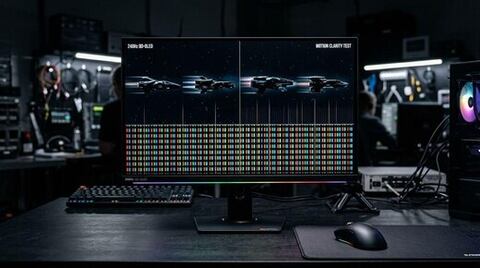
Yet, plug that "1ms" IPS monitor into your gaming PC, flick your camera across an esports arena, and text on walls blurs into unreadable smears. Meanwhile, competitive players transitioning to 240Hz or 360Hz QD-OLED / WOLED monitors report an astonishing leap in target tracking and instantaneous motion clarity, even when the box claims "0.03ms."
What is going on here? Why are manufacturer response time specifications almost universally misleading? And why do so many gamers conflate pixel response time with input lag?
Let us unpack the optical physics of liquid crystals, moving picture response time (MPRT), overdrive overshoot, and the complete latency chain from mouse microswitch to your retina.
---
1. Pixel Response Time vs Input Lag: The Vital Distinction
The single most common mistake in gaming hardware discussion is using "response time" and "input lag" interchangeably. They are completely different metrics governed by different engineering constraints:
| Metric | What It Measures | Governed By | User Perception When Poor |
|---|---|---|---|
| Pixel Response Time (GtG) | The time required for an individual physical pixel sub-pixel to transition from one color shade to another | Liquid crystal physical viscosity (LCD) or organic diode switching (OLED) | Smearing, trailing ghost artifacts, motion blur behind moving objects |
| Input Lag (Total System Latency) | The elapsed time from physical mouse button click until the resulting action is optically emitted on display | Peripheral polling + CPU engine tick + GPU render time + Display scaler scanout | Sluggishness, camera feeling "heavy" or delayed, disconnect between hand and crosshair |
A monitor can have an ultra-fast 1ms pixel response time, but if its internal image processing scaler takes 25ms to buffer frames, your total input lag will feel unresponsive.
---
2. The Myth of the "1ms" LCD: Grey-to-Grey (GtG) Deconstructed
How can display manufacturers legally claim a monitor has a "1ms response time" when real-world measurements show noticeable blurring?
The secret lies in Grey-to-Grey (GtG) testing methodology.
On an LCD monitor, pixels do not emit light; they act as physical liquid crystal shutters in front of an LED backlight. To change colors, an electrical voltage is applied, physically rotating the microscopic crystal molecules in space to allow more or less light through.
Physical liquid crystals take time to twist:
- A transition from dark grey (shade 50) to slightly lighter grey (shade 80) requires only a small molecular shift. Under extreme, artificial overdrive voltage, manufacturers measure a single cherry-picked transition that completes in 0.99ms and stamp "1ms" across the packaging.
- But in real gaming scenarios, transitions from pitch black (0) to pure white (255)—or dark blue to crimson—can take 8 to 14 milliseconds. If a transition takes 14ms on a 144Hz monitor (where a new frame arrives every 6.94ms), the pixel fails to complete its transition before the next frame is already pushed. The result is visible ghosting and trailing.
The Overdrive Voltage Trap: Inverse Ghosting (Coronas)
To force slow liquid crystals to twist faster, monitor scalers inject voltage overdrive.
If the voltage is pushed too aggressively (usually labeled "Extreme" or "Fastest" in your monitor’s on-screen display menu), the crystals overshoot their target alignment, snapping past the intended color before bouncing back. This creates inverse ghosting (coronas)—jarring, bright glowing halos trailing behind moving enemies that look even worse than standard motion blur.
---
3. MPRT and Sample-and-Hold: Why Eye-Tracking Causes Blur
Here is an uncomfortable truth: even if an LCD had an instantaneous 0.00ms GtG pixel transition time, fast motion would still appear blurry.
Why? Because modern flat panels are sample-and-hold displays.
On a sample-and-hold display, each rendered frame remains statically illuminated on the screen for the entire duration of the refresh cycle (e.g., for 6.94ms on a 144Hz screen, or 4.16ms on a 240Hz screen) until the next frame instantly replaces it.
When your eyes track a rapidly moving target across your screen, your eyes move in a smooth, continuous physiological sweep (smooth pursuit eye movement). But the image on your monitor is not moving smoothly; it is holding frozen in discrete physical steps.
As your retina sweeps across a frozen image, your brain blends the spatial positions together across the exposure duration. This is called retinal persistence blur.
The metric that measures this real-world perceived blur is Moving Picture Response Time (MPRT):
> MPRT ≈ 1000 / Refresh Rate (Hz)
- At 60Hz: MPRT is 16.67 ms of persistence blur.
- At 144Hz: MPRT is 6.94 ms of persistence blur.
- At 240Hz: MPRT is 4.16 ms of persistence blur.
- At 500Hz: MPRT drops to 2.00 ms of persistence blur.
---
4. The OLED Revolution: 0.03ms True Switching
This optical physics reality explains why OLED (Organic Light Emitting Diode) technology has rewritten competitive display benchmarks.
Unlike LCDs, which twist sluggish liquid crystals, an OLED panel features self-emissive organic sub-pixels. When current is applied or removed, the diode changes state at the molecular electron level.
- Average Fast-IPS GtG response: 3.5 ms to 6.0 ms (with visible overshoot on extreme overdrive).
- Average QD-OLED / WOLED response: 0.03 ms to 0.1 ms across ALL transitions, with zero overdrive overshoot coronas.
Because OLED transitions are essentially instantaneous, the display achieves near-theoretical motion clarity limits for whatever refresh rate it runs at. A 240Hz OLED exhibits cleaner, sharper moving text and target silhouettes than a 360Hz Fast-IPS panel, because the IPS panel’s trailing transition times smear into the next frame window.
---
5. Optimal Monitor Configuration Checklist
1. Avoid the "Fastest" Overdrive Setting on LCDs: Set your monitor’s overdrive to the middle setting ("Normal" or "Fast", avoiding "Extreme"). This eliminates inverse ghosting halos while retaining 90% of transition speed.
2. Enable Variable Refresh Rate (G-Sync/FreeSync): Eliminates screen tearing and presentation queue micro-stutter. Always cap framerate 3 FPS below the maximum refresh rate to ensure the display never exits the active VRR window.
3. Turn OFF Display "Deep Sleep" & Scaler Enhancements: Disable dynamic contrast ratios, super-resolution sharpness filters, and motion smoothing (MEMC) in your monitor's internal firmware. These post-processing filters buffer entire frames, introducing 15 to 40ms of catastrophic input latency.
4. Prefer Native Resolution: Running non-native resolutions forces the monitor scaler to perform spatial upscaling interpolation, adding processing delay. Use modern GPU scaling (NIS, DLSS, FSR) instead.